Guides
Volume Discount
2 min read Updated Jun 30, 2026
**Step 1: Create the Volume Discount Bundle**#
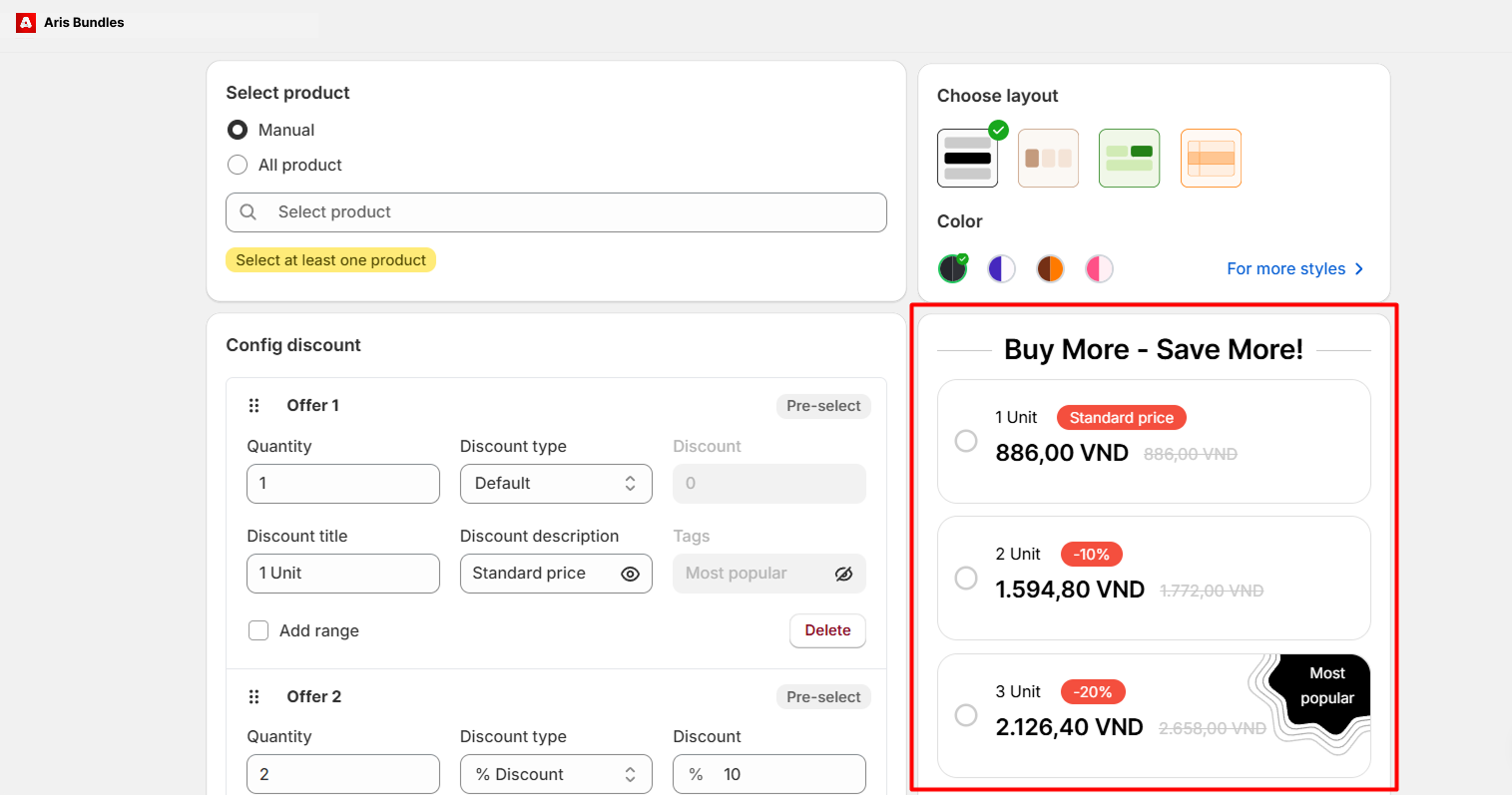
Click on Create Bundle and select Volume Discount as the bundle type.
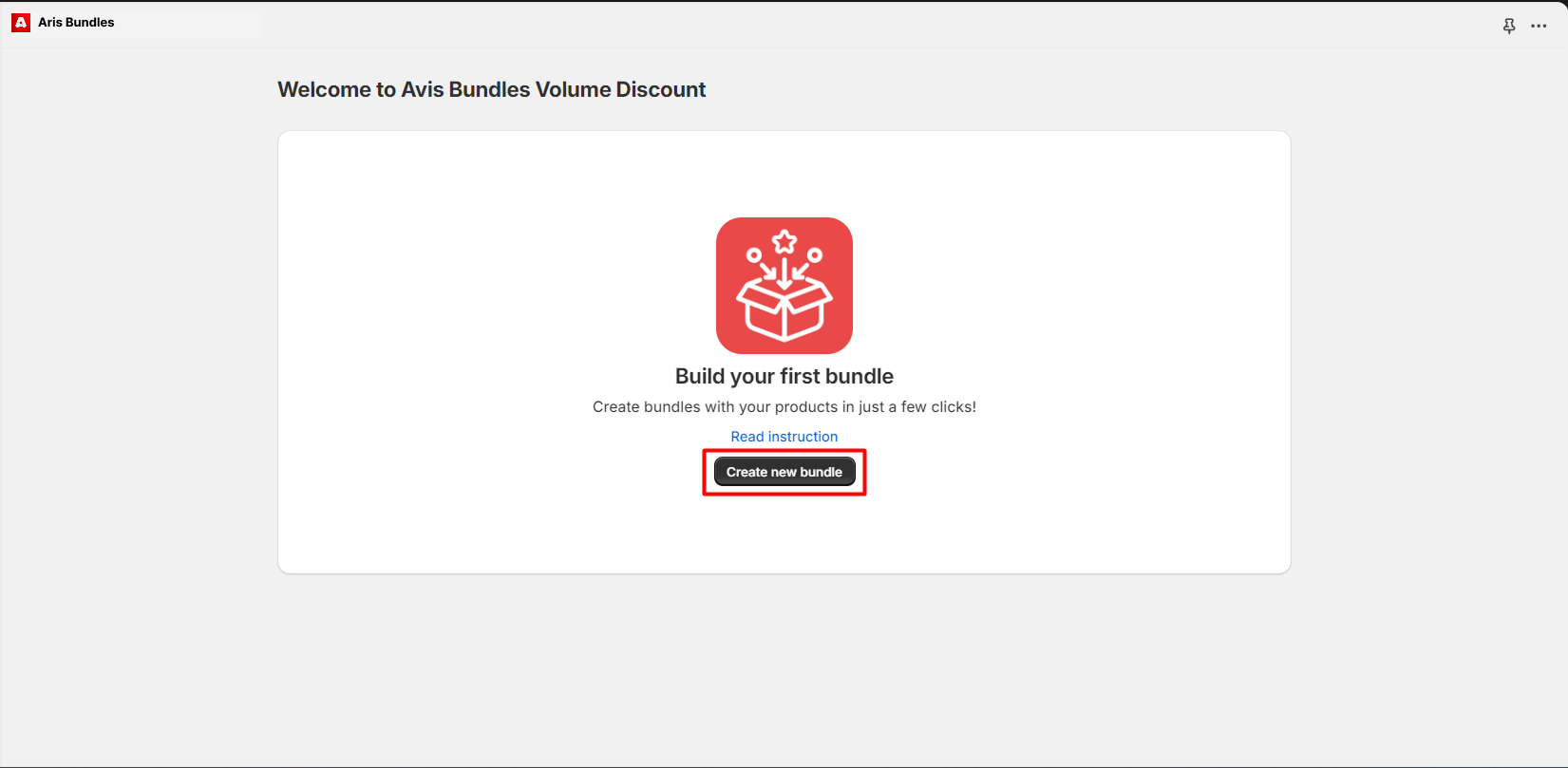
**Step 2: Name Your Discount**#
Enter a descriptive name for your discount (e.g., “Buy More, Save More”).
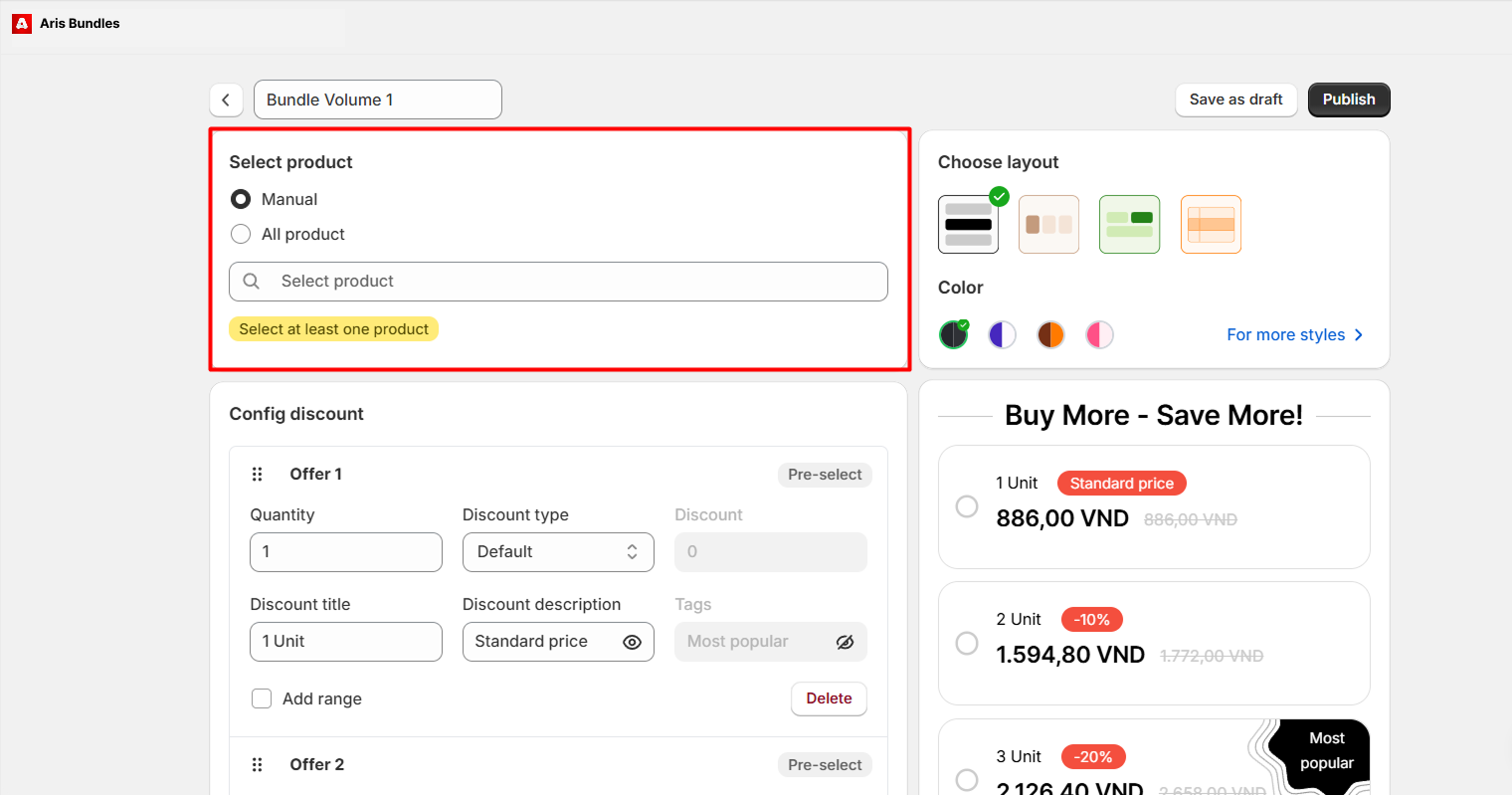
**Step 3: Choose Eligible Products**#
- Decide how to select the products for the discount:
- All Products: Apply the discount to all products in your store.
- Manual: Select specific products or collections to include in the discount.
- Use the search bar to find specific products if you choose the Manual option.
- Add the products to the Volume Discount by clicking Add to Bundle.
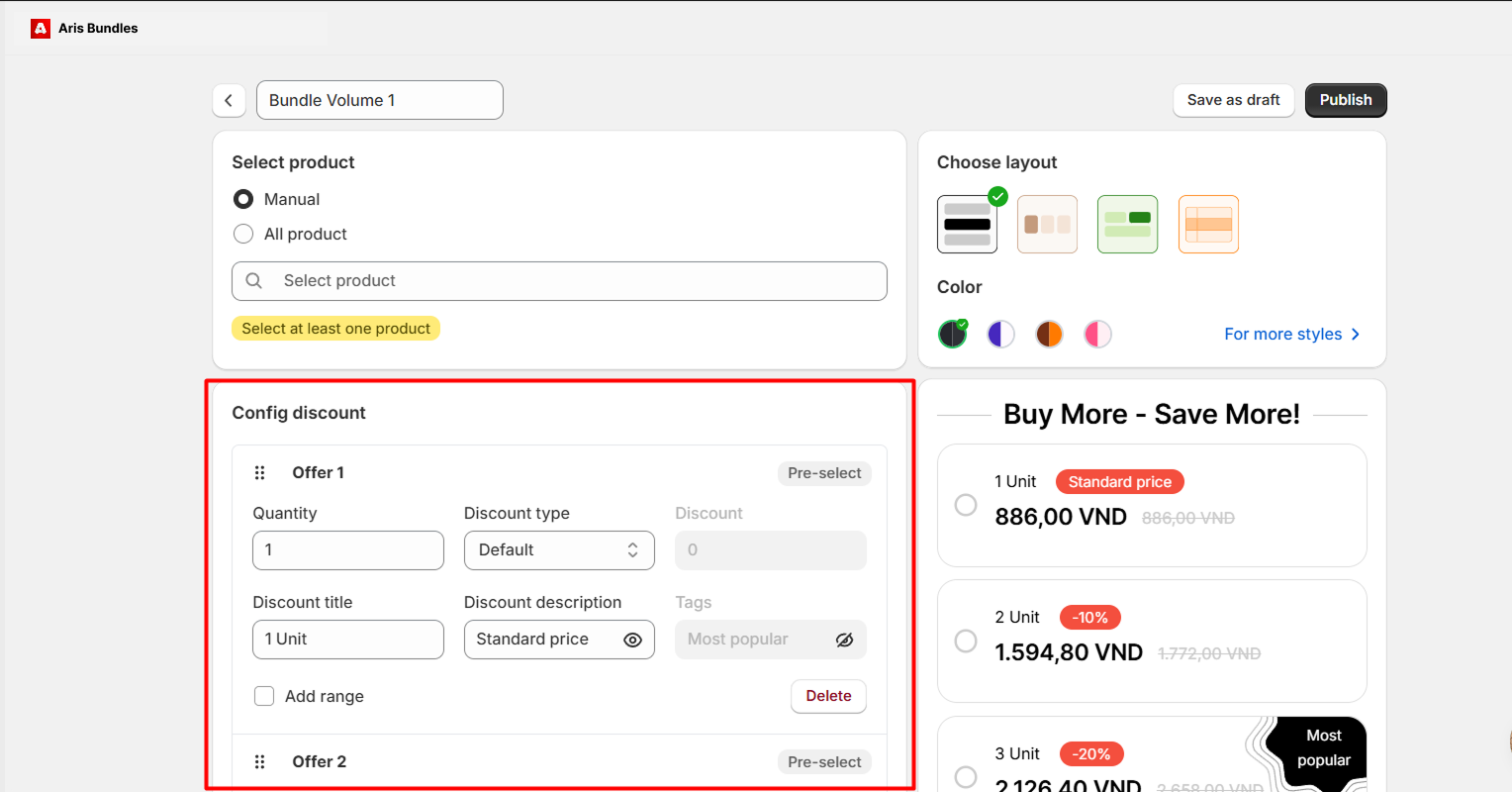
**Step 4: Set Discount Rules**#
- Define Quantity Tiers:
- Specify the quantity ranges for the discount (e.g., 1-5 items, 6-10 items).
- Add as many tiers as needed to create a scalable discount structure.
- Assign Discounts to Each Tier:
- Choose a discount type for each tier: percentage off or fixed amount off.
- Enter the corresponding discount value (e.g., 10% off or $5 off).
**Step 5: Configure Display Settings**#
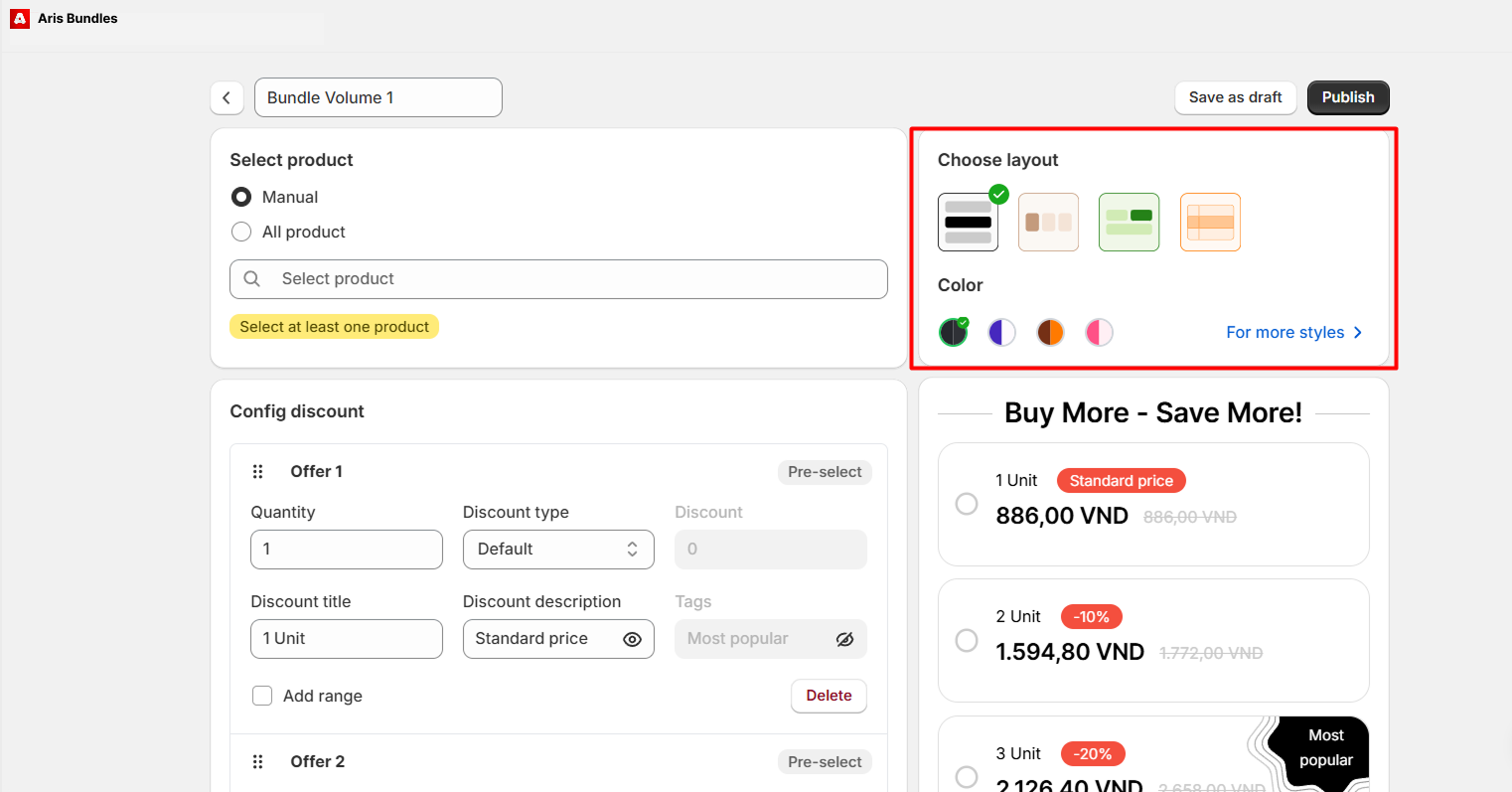
- Layout and Color: Choose a layout and color scheme for how the offer will be displayed to customers.
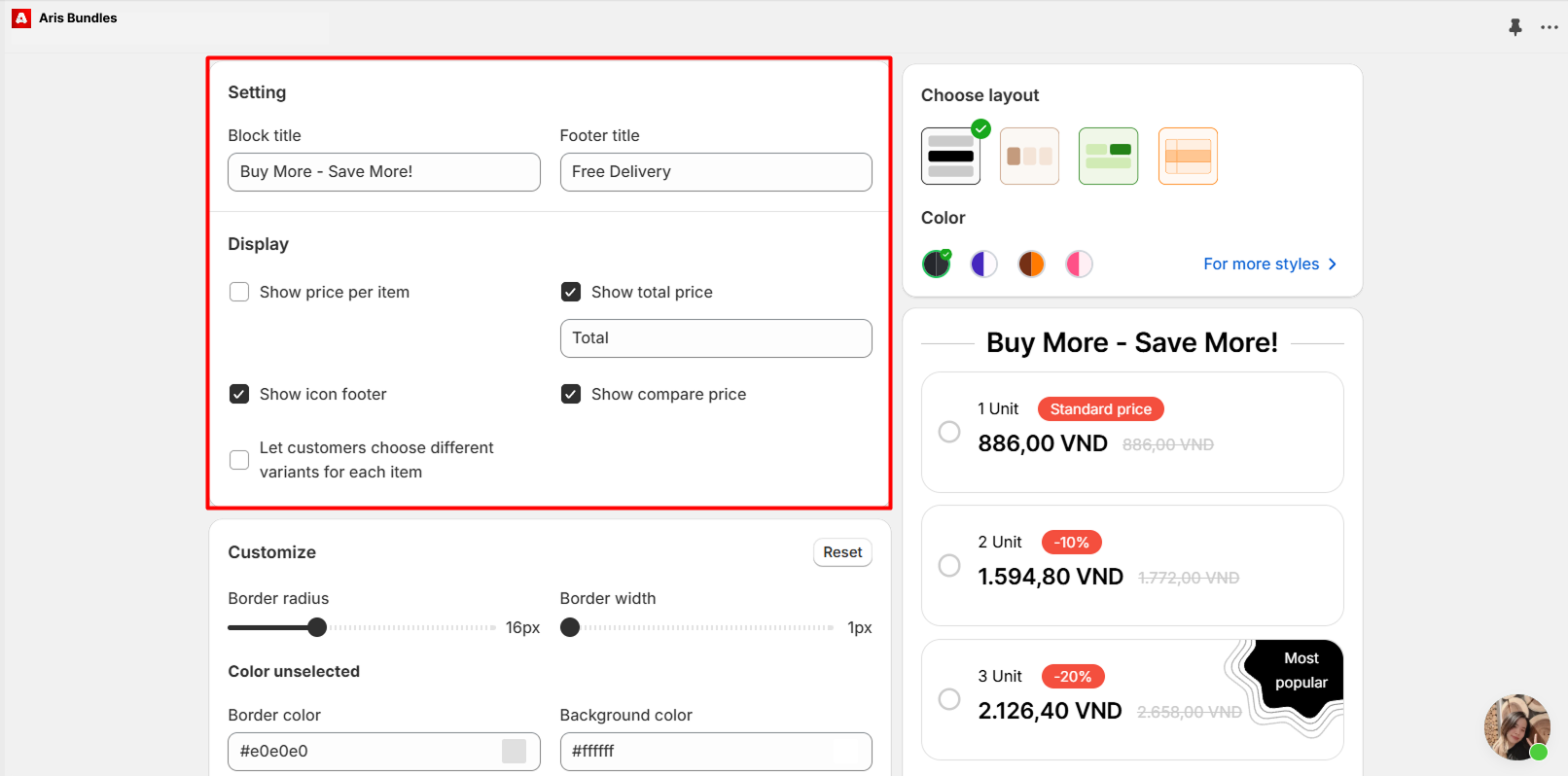
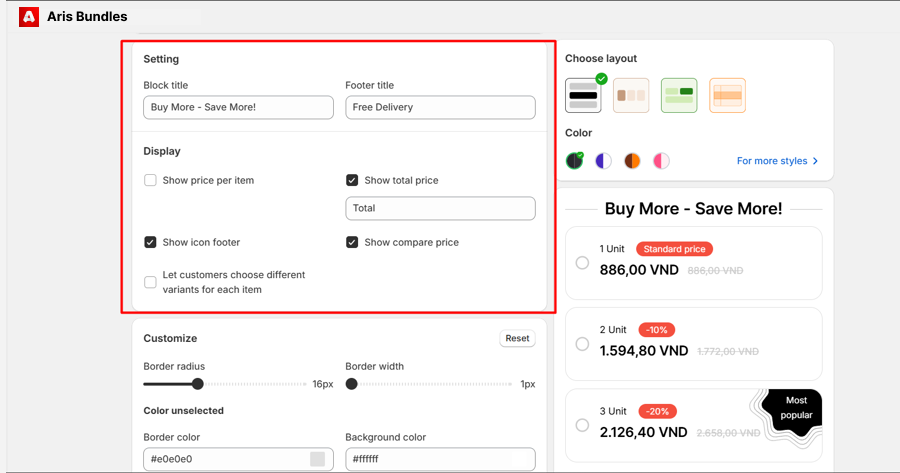
- Settings:
- Block Title: Customize the title displayed at the top of the discount block.
- Footer Title: Add a title for the footer section of the discount block.
- Display Options:
- Show Price per Item: Display the price for each individual item.
- Show Total Price: Show the total price for selected quantities.
- Show Icon Footer: Toggle the display of an icon in the footer.
- Show Compare Price: Display the original price alongside the discounted price.
- Let Customers Choose Different Variants for Each Item: Enable customers to select multiple variants within the discount.
**Step 6: Customize the Offer Style**#
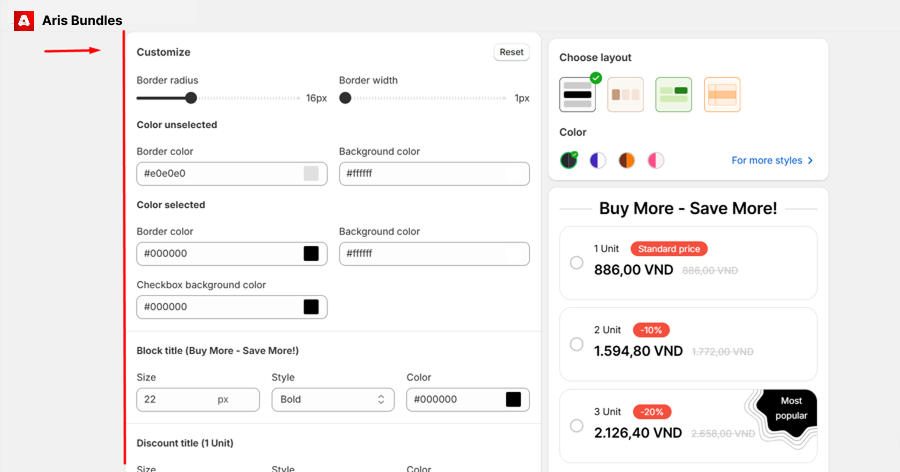
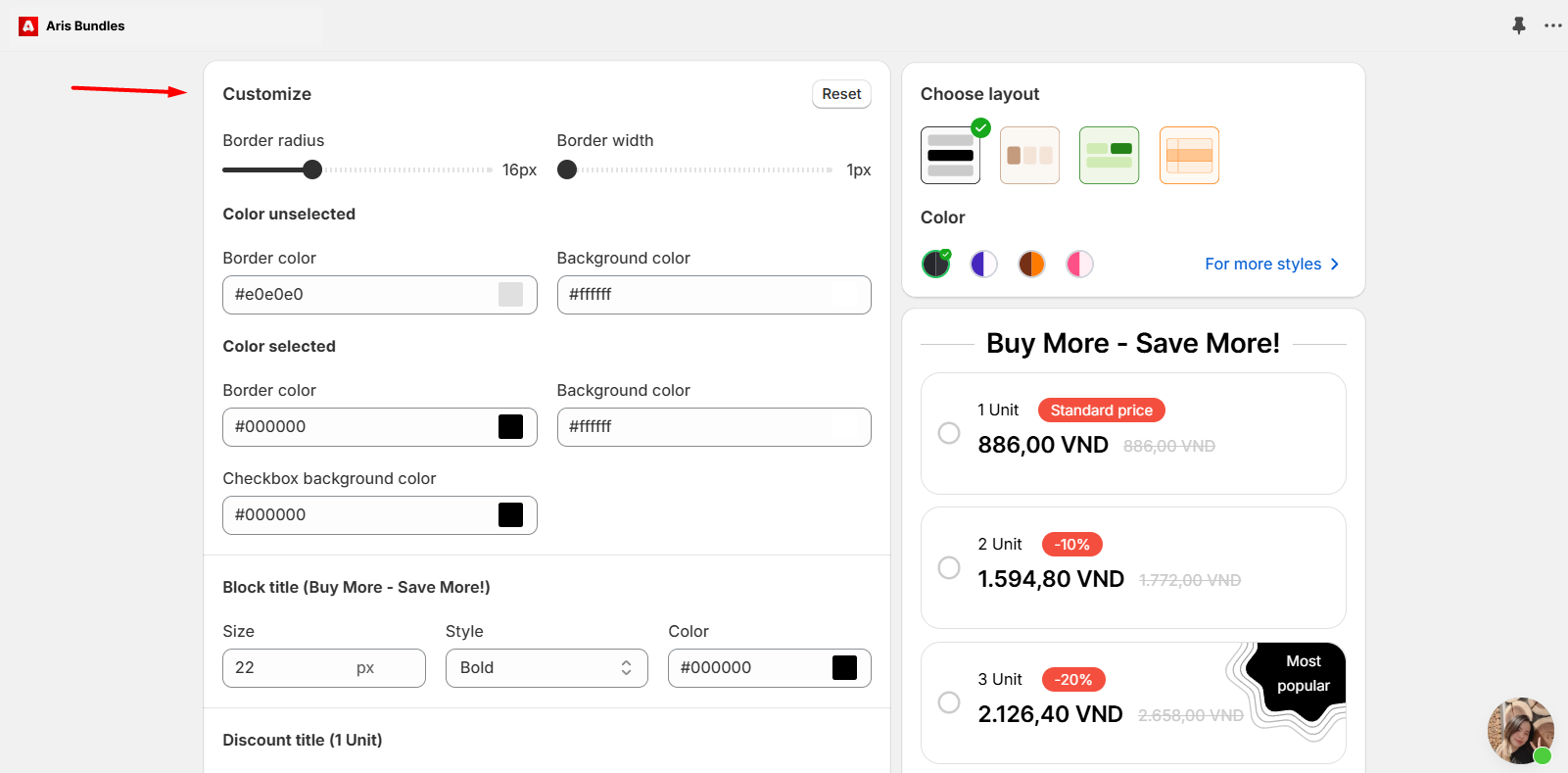
Use the Customize to further refine the display style of your Volume Discount offer.
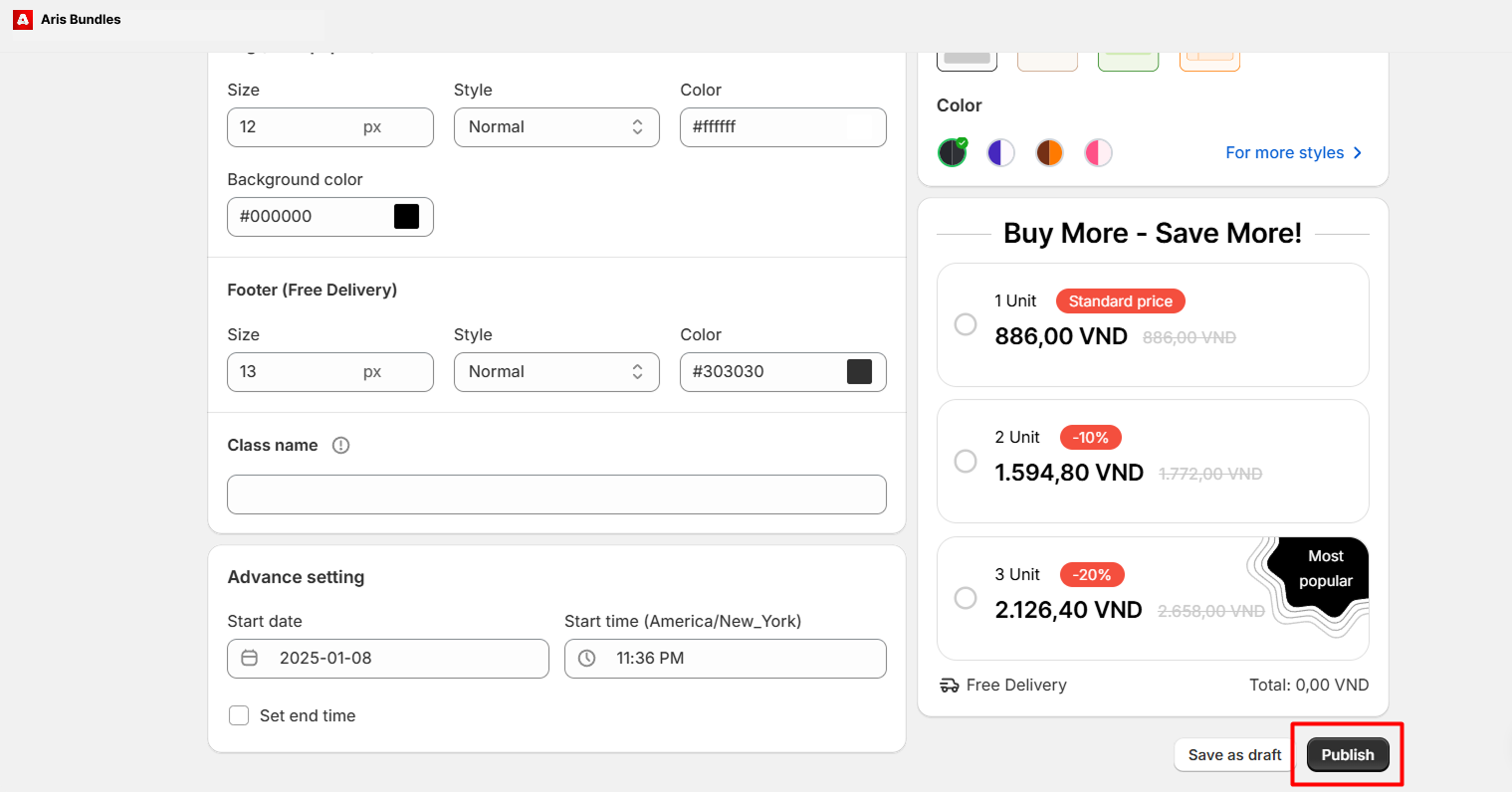
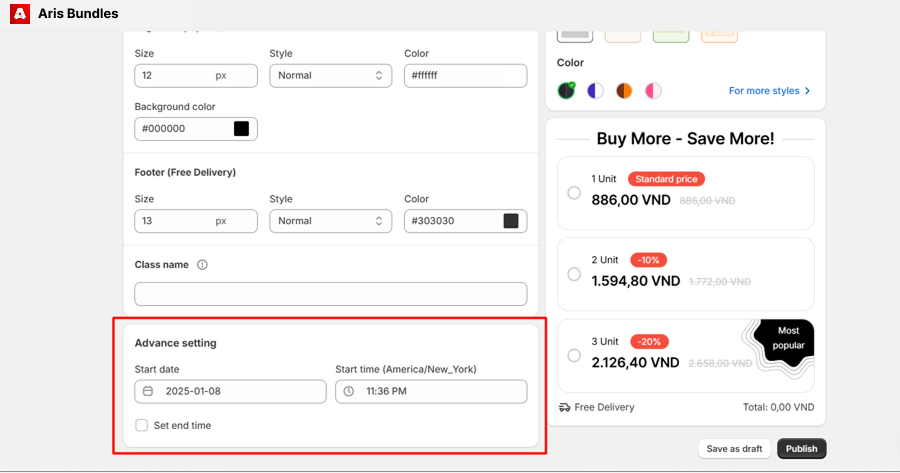
**Step 7: Configure Active Dates**#
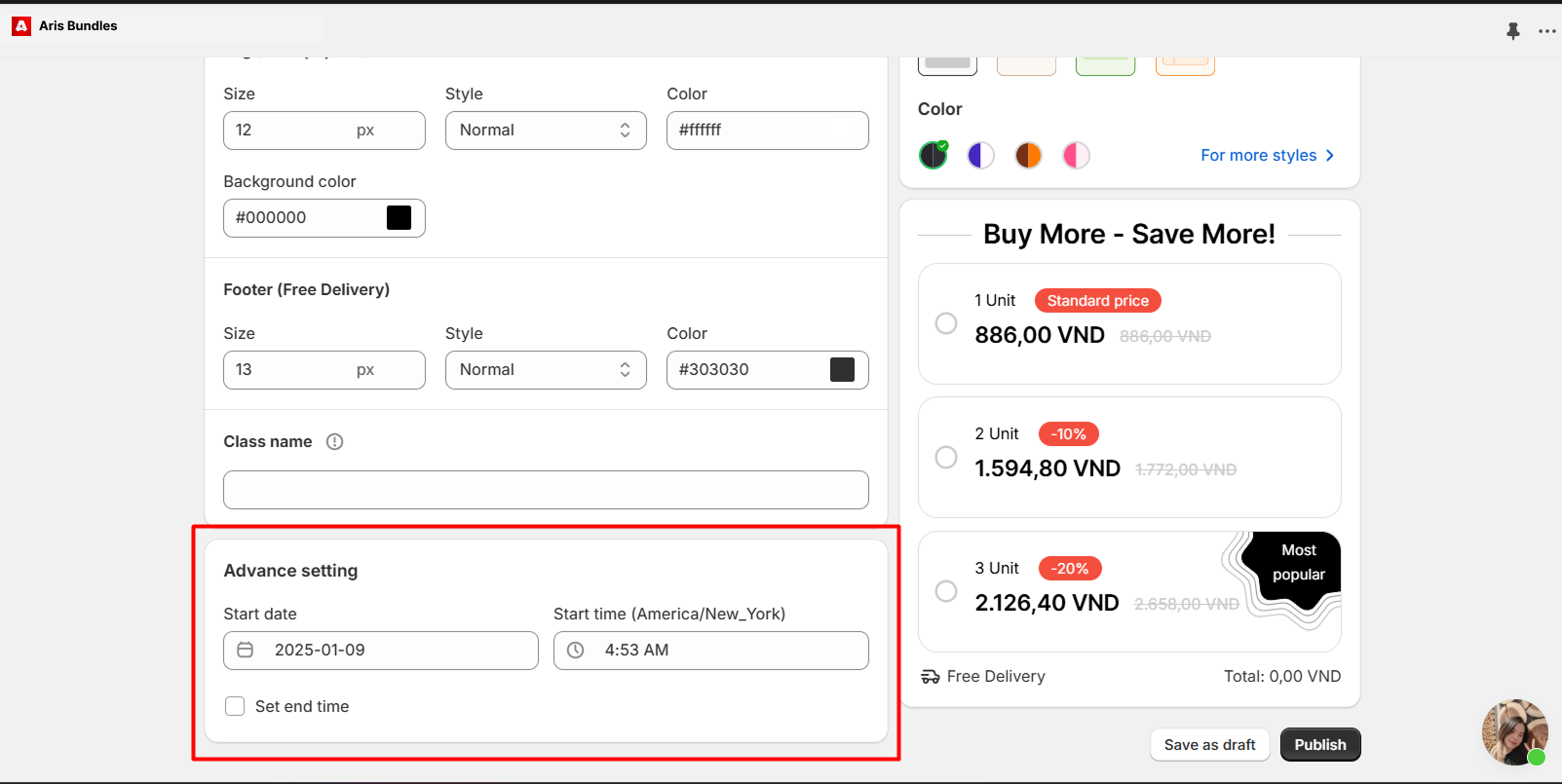
Set Active Dates:
- Specify the start and end dates for the discount to control its availability.
- Use this feature to align discounts with specific sales events or promotions.
**Step 8: Preview and Publish**#
- Review your Volume Discount setup to ensure all details are correct.
- Use the Preview option to see how the discount will appear to your customers.
- Click Publish to make the discount live on your store.
Tips for Success
- Test Different Tiers: Experiment with various quantity tiers to find the optimal balance between encouraging larger purchases and maintaining profitability.
- Analyze Performance: Monitor the impact of your Volume Discount in the analytics section and adjust the rules as needed.
By setting up a Volume Discount, you make it easier for customers to save while increasing your store’s average order value. Start creating your discount today and watch your sales grow!
Settings and Customize- You can tailor the offers' display and duration to your specific needs and preference
- If you want to adjust the style and color of the widget, you can easily do it in the Customize section of the setup