Guides
Mix & Match
2 min read Updated Jun 30, 2026
Step 1: Create the Mix & Match Bundle#
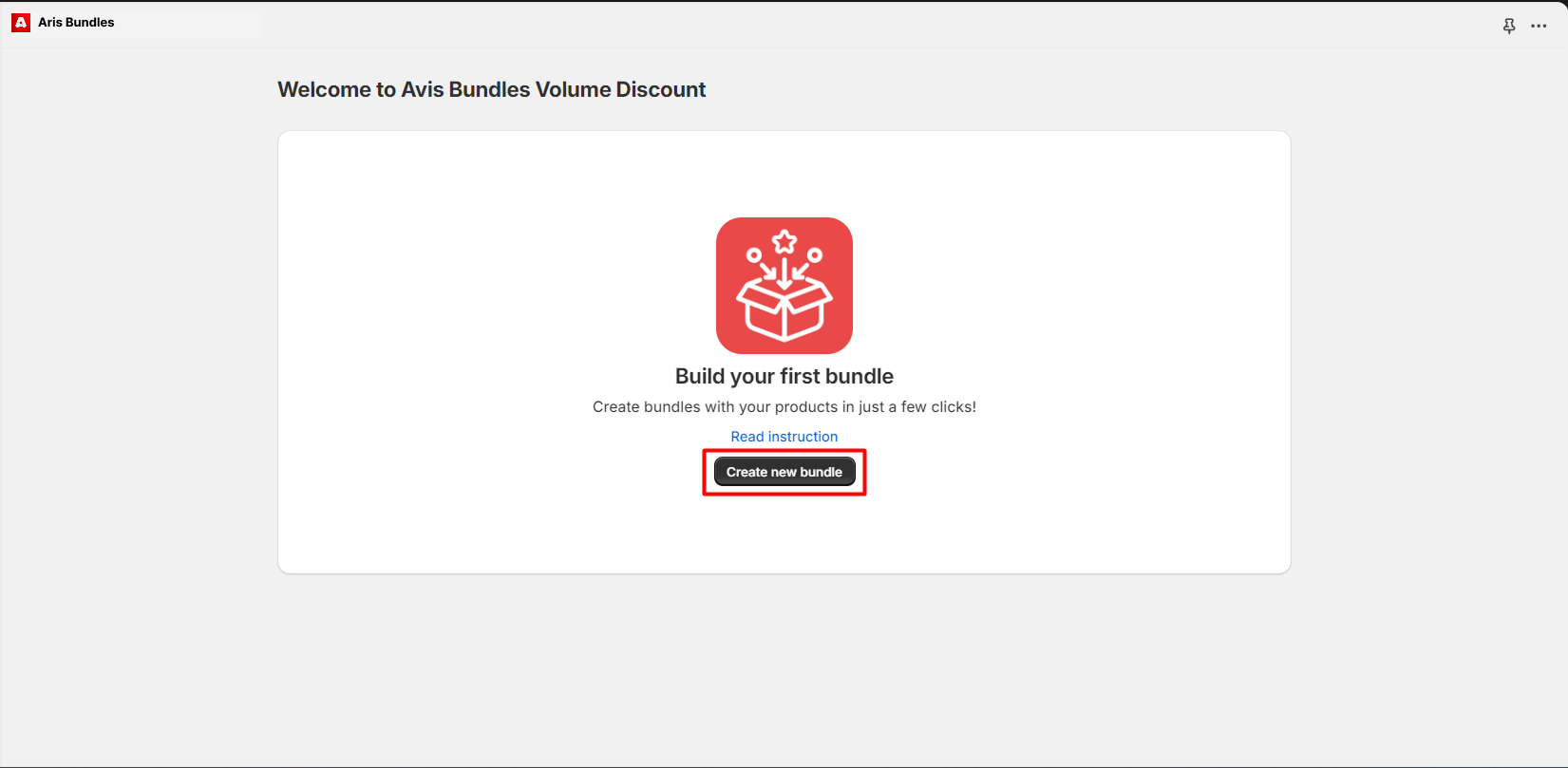
Click on Create Bundle and select Mix & Match as the bundle type.
Step 2: Name Your Bundle#
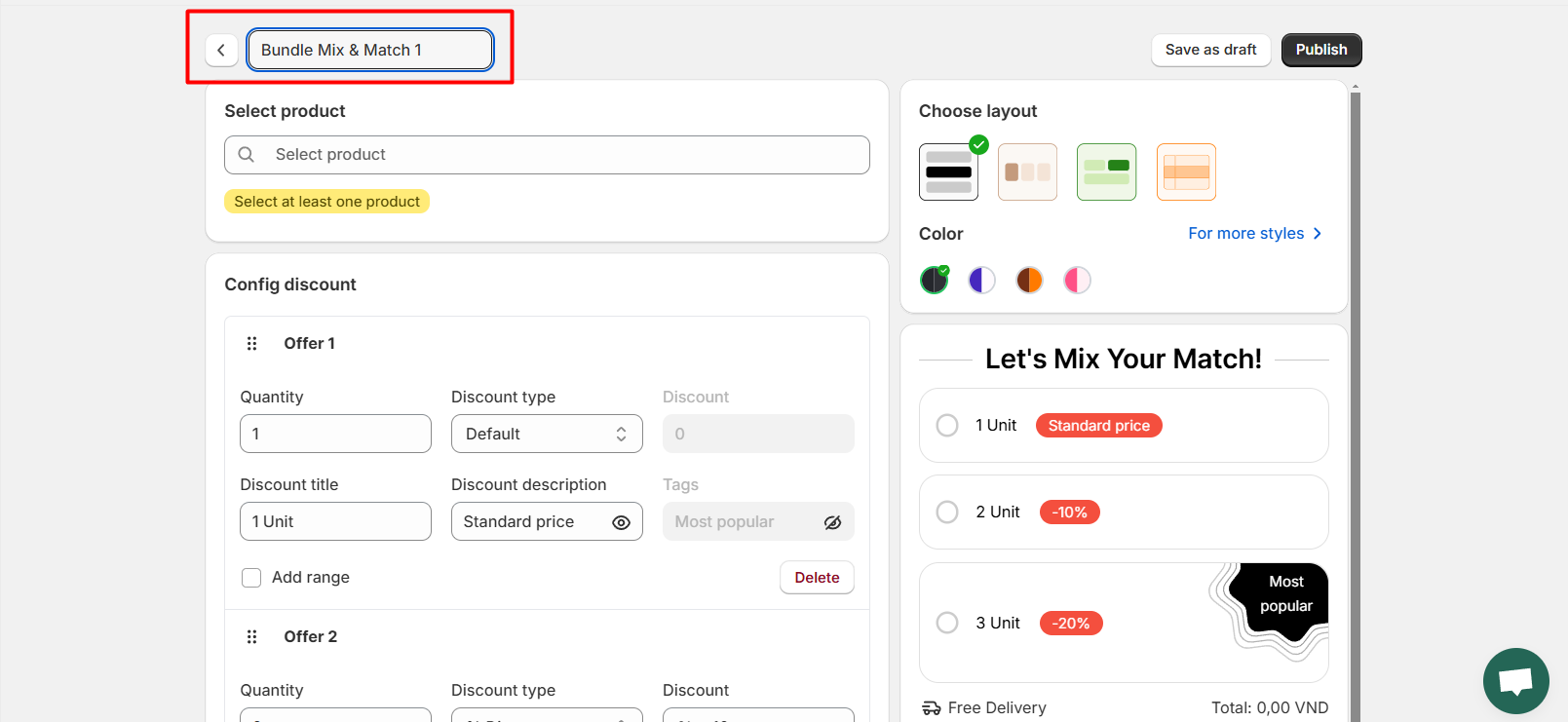
Enter a clear and descriptive name for your bundle (e.g., “Summer Essentials Mix & Match”).
Step 3: Choose Eligible Products#
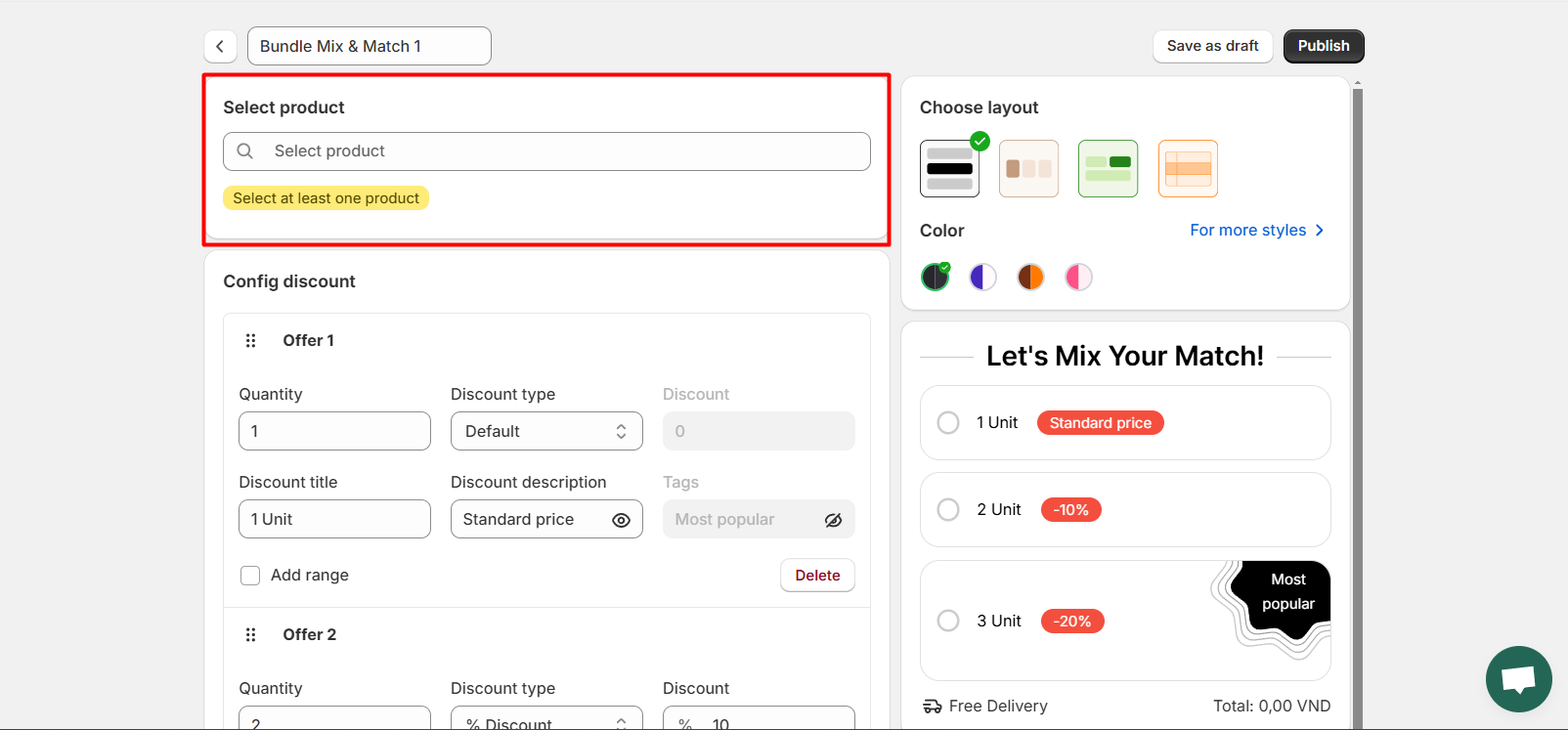
- Select the products you want to include in the bundle
- Use the search bar to find the products easily.
- Add the products to the bundle by clicking Select.
Step 4: Set the Discount#
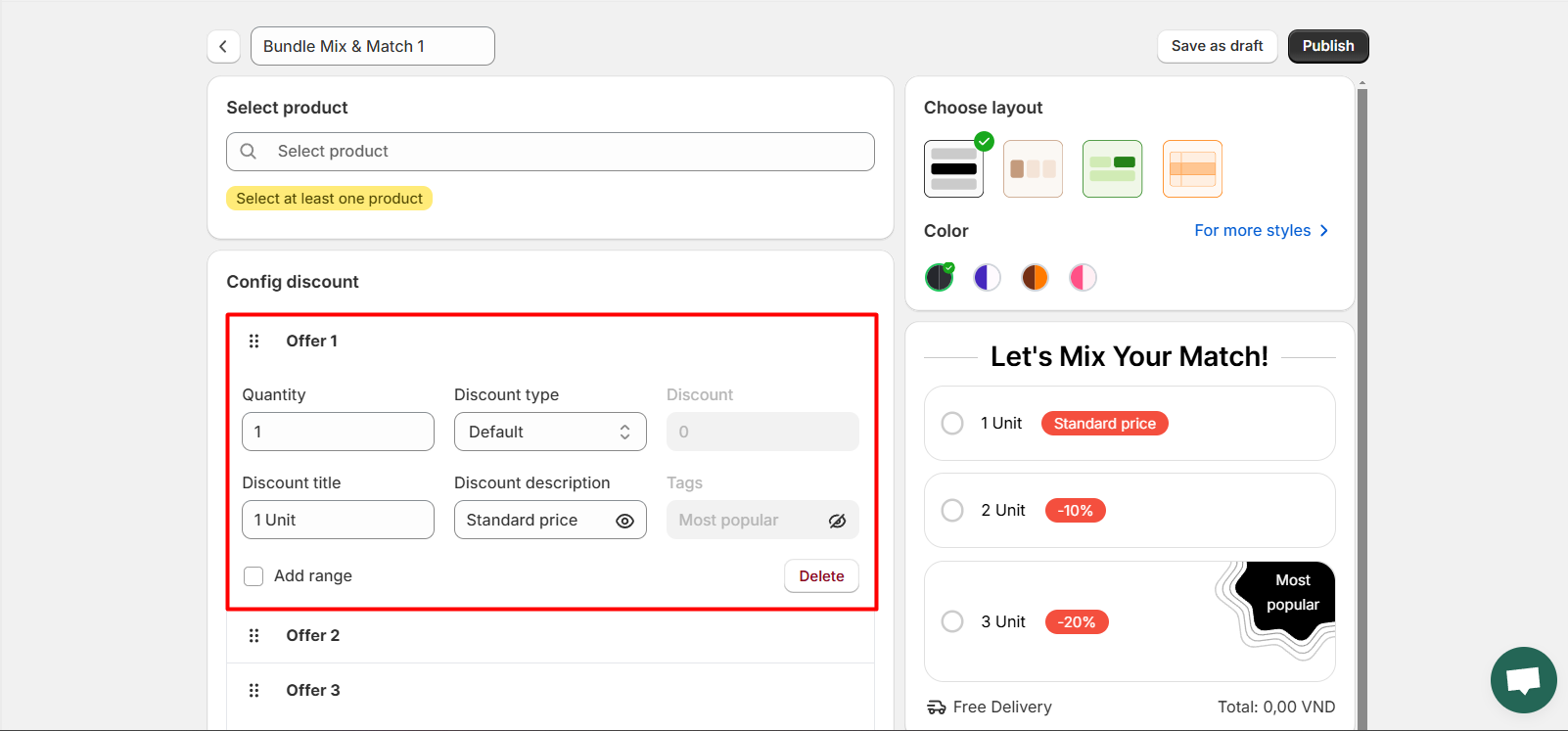
- Set a minimum (and maximum) number of items that customers must mix and match to qualify for the discount.
- Decide on the type of discount you want to offer, such as a percentage off or a fixed amount.
- Enter the discount value (e.g., 15% off or $10 off).
Step 5: Configure Additional Settings#
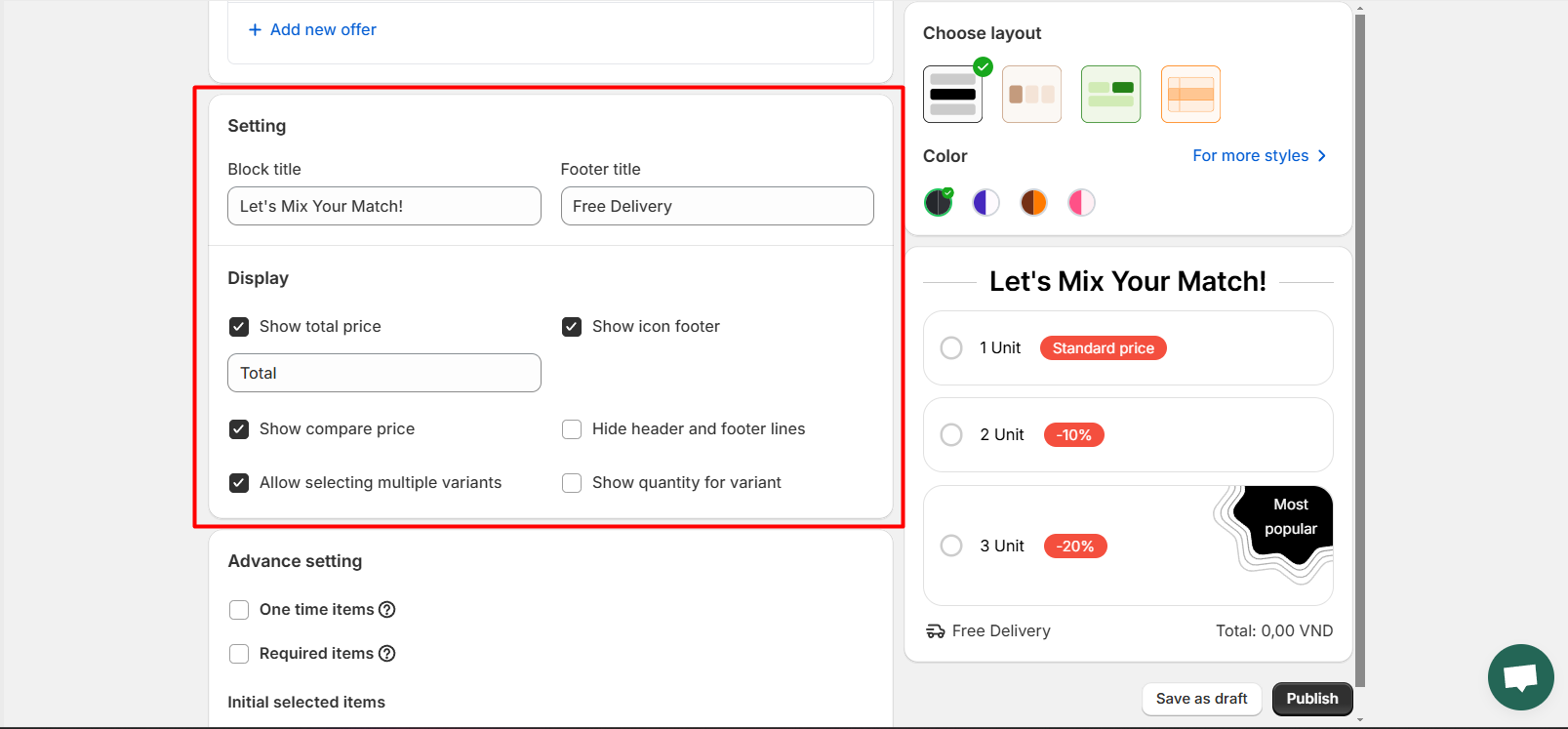
- Block Title: Customize the title displayed at the top of the bundle block.
- Footer Title: Add a title for the footer section of the bundle block.
- Show Total Price: Enable this option to display the total price of the selected items.
- Show Icon Footer: Toggle this setting to show or hide an icon in the footer of the bundle block.
- Show Compare Price: Enable this to display the original price alongside the discounted price.
- Hide Header and Footer Lines: Use this option to remove lines in the header and footer.
- Allow Selecting Multiple Variants: Let customers choose multiple variants of the same product in the bundle.
- Show Quantity for Variant: Allow customers to specify the quantity of each variant they add to the bundle.
Step 6: Configure Advanced Settings#
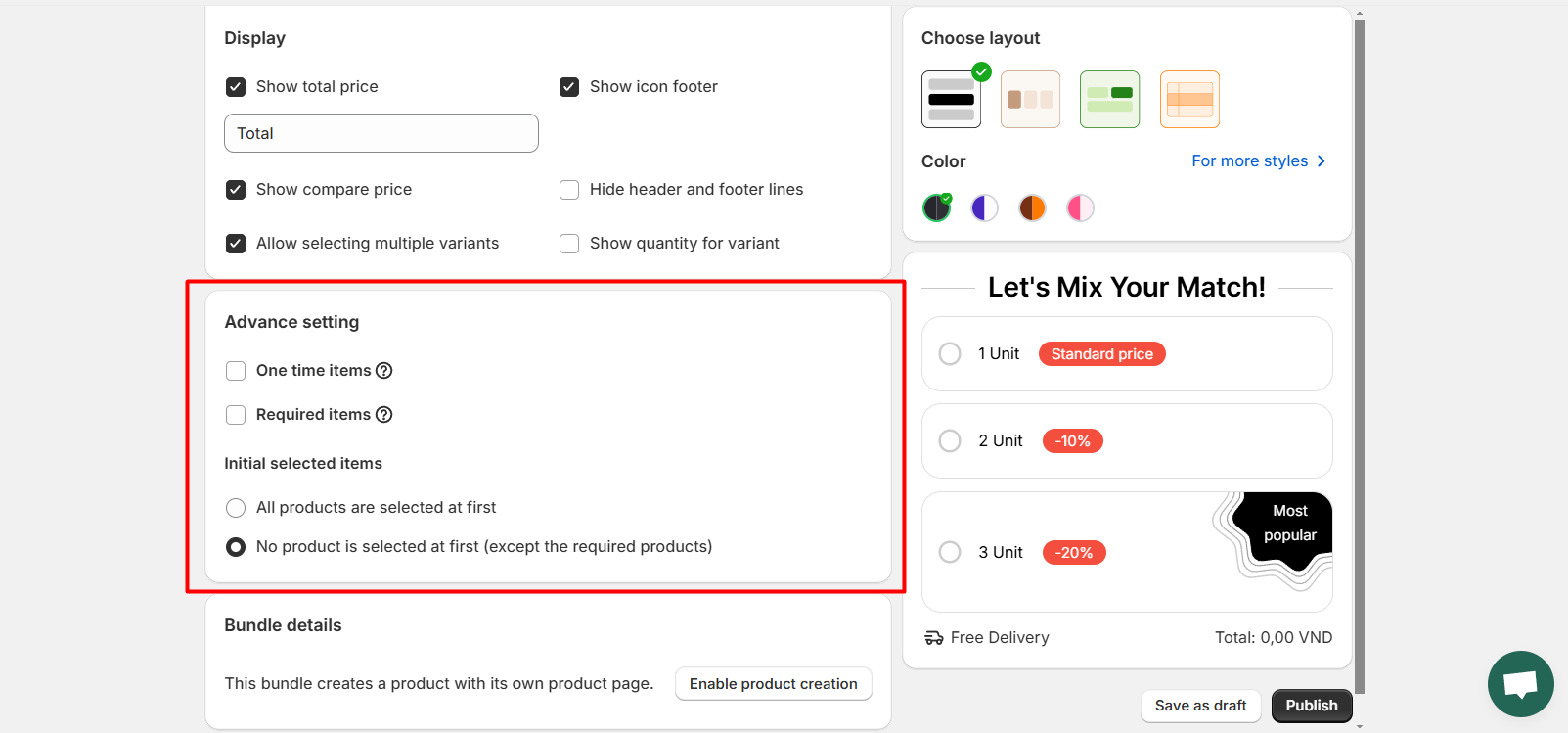
- One-Time Items: List the products that customers can include in the bundle only once.
- Required Items: Specify products that customers must purchase as part of the bundle.
- Initial Selected Items:
- Set whether all products are pre-selected at first.
- Alternatively, choose to have no products selected initially (except for required products).
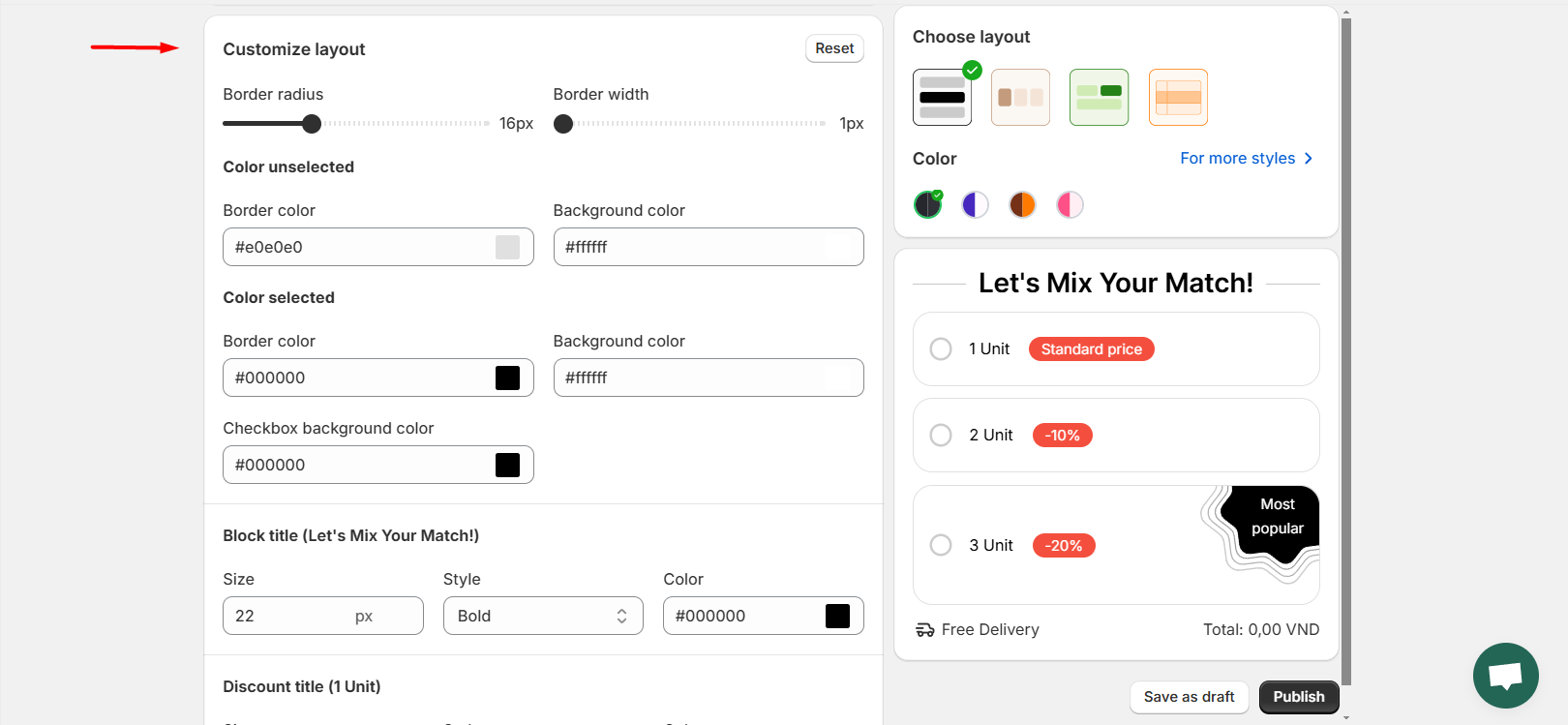
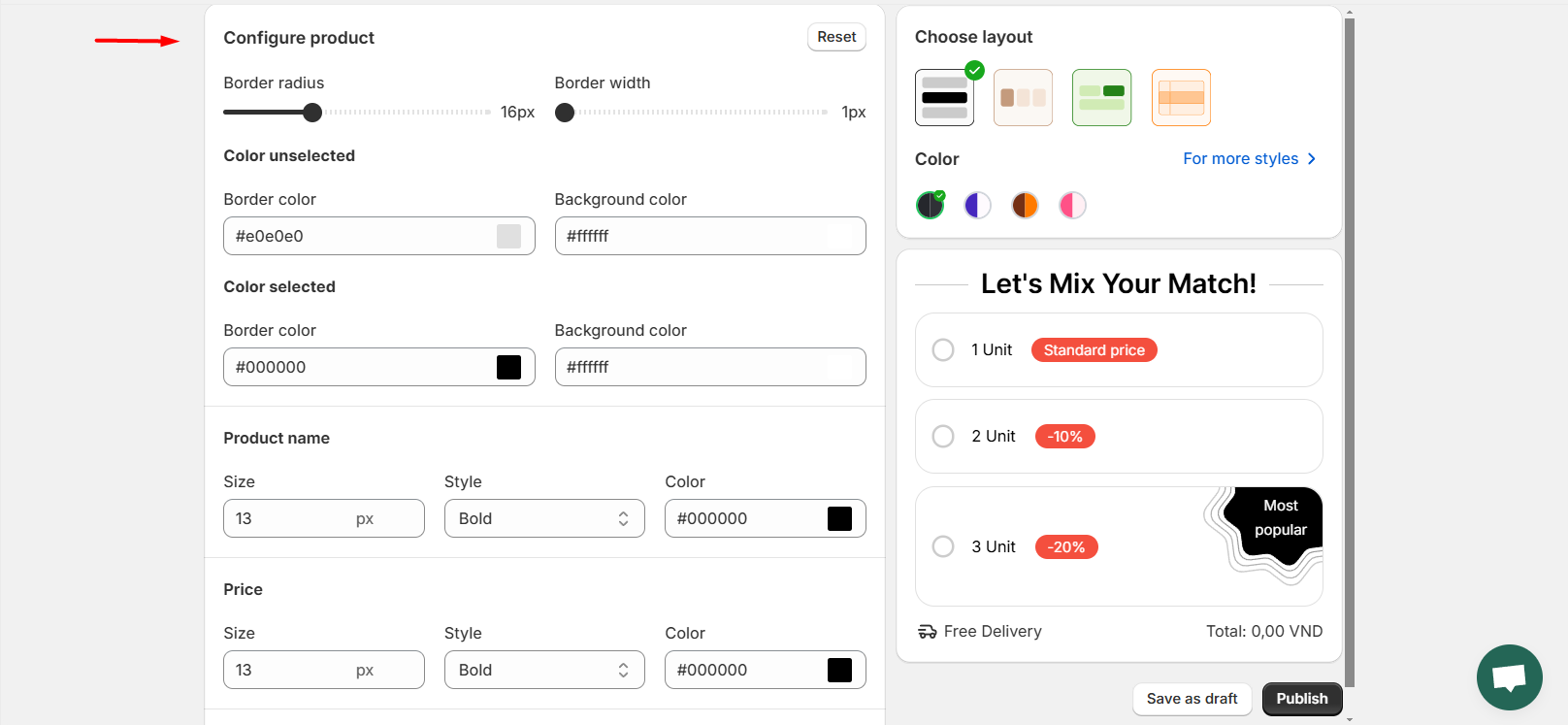
Step 7: Customize the Display Style of the offers and products#
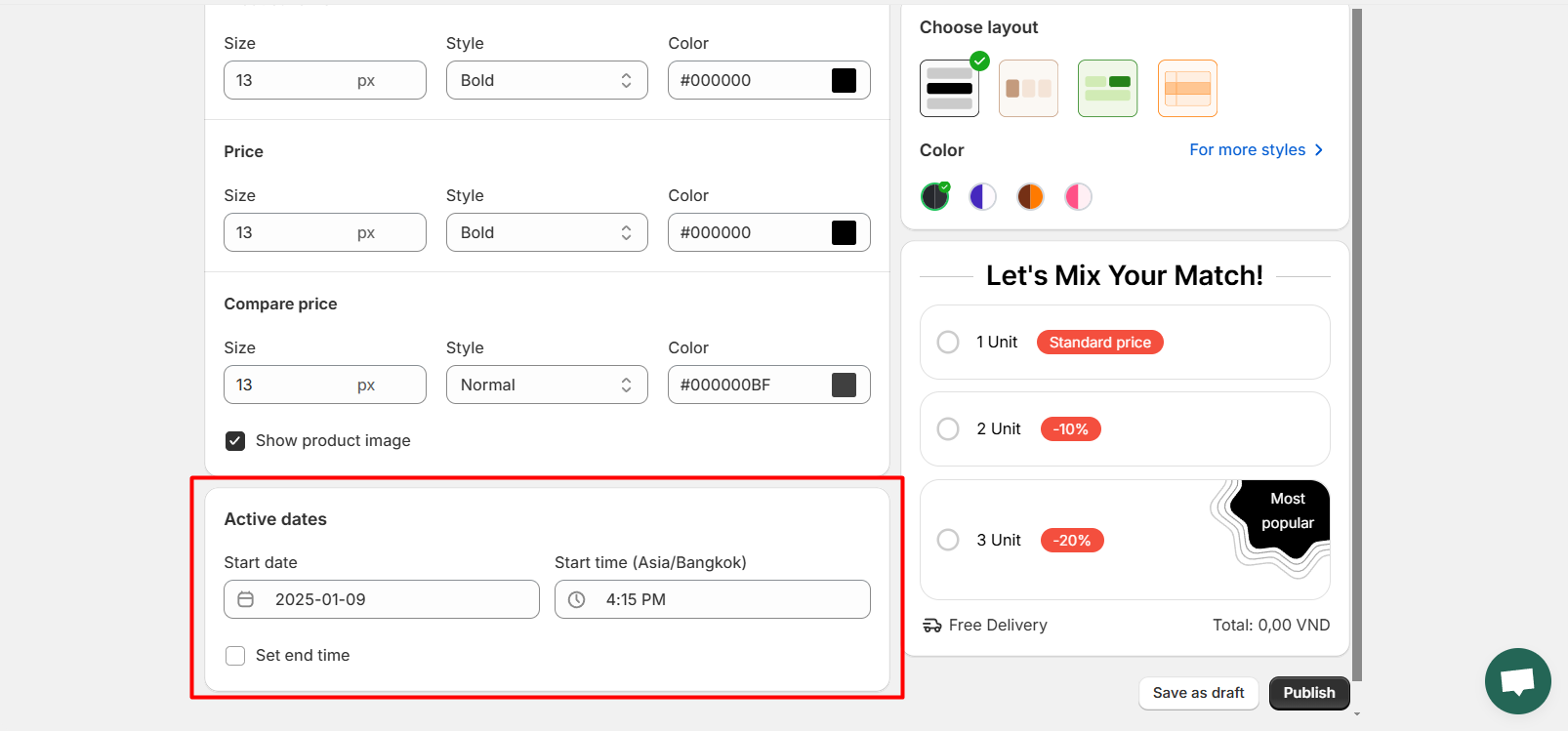
Step 8: Set Active Dates for the Offer#
- Define the start and end dates for the Mix & Match bundle to control its availability.
- Use the calendar picker to set specific dates or leave it open-ended for ongoing offers.
Step 9: Preview and Publish#
- Review your bundle setup to ensure everything looks correct.
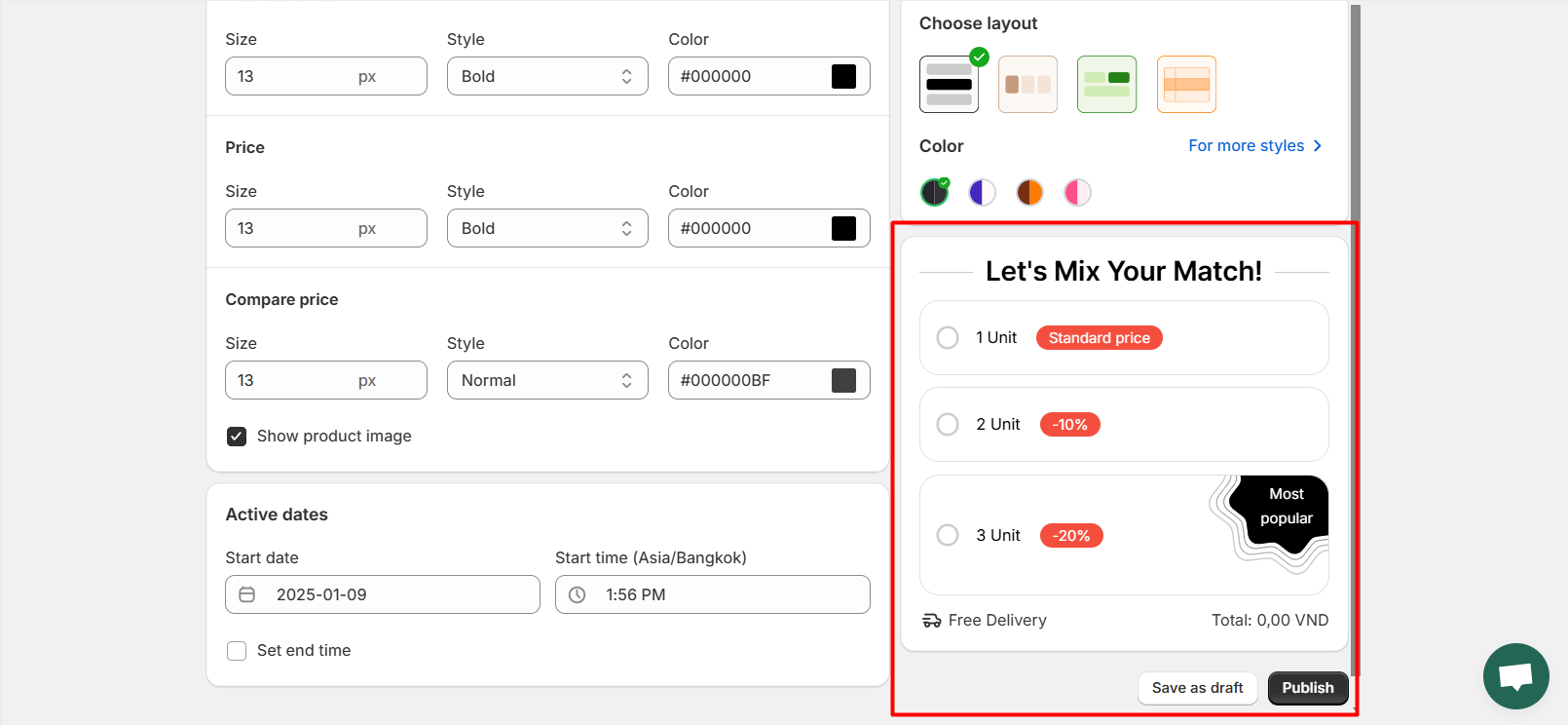
- Use the in-app Preview area to see how it will appear to your customers.
- Click Publish to make the bundle live on your store.
By setting up a Mix & Match bundle, you provide your customers with more choices while boosting your sales. Start creating your bundle today and watch your customers enjoy the flexibility and savings!